
An Online Al-Anon Email Meeting
An Online Al-Anon Email Meeting

When Key to Harmony members submit a share using the Choose a Topic for a Key Meeting form on the website, the Tech Team receives an email with the member's email, name, topic of meetings and their share.
These are the steps to schedule the meeting's opening and closing statements:
Then click on Compose again and chose the proper Closing statement and schedule it. The closing statements do not need editing. That's the keep-it-simple steps of the process. The 12 detailed steps are below, with images:
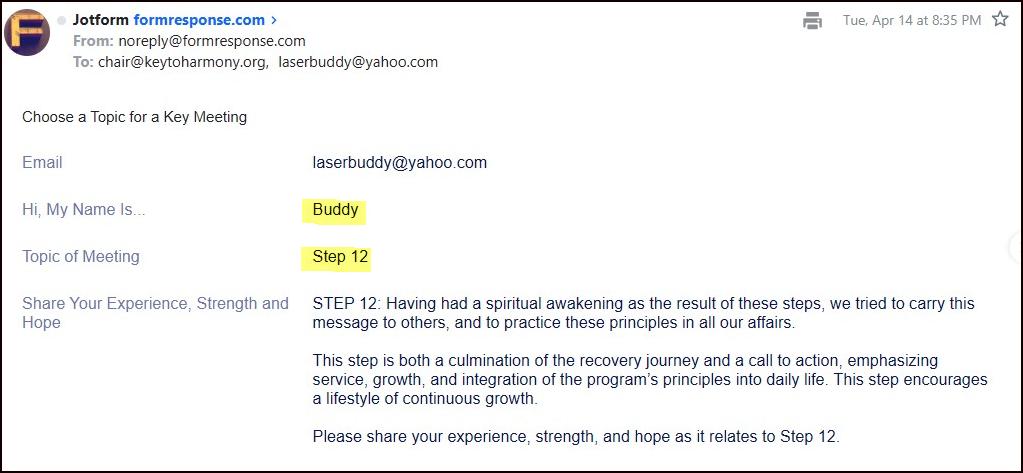
1. Open the email in your inbox from JotForm (above) with the Subject: "Choose a Topic for a Key Meeting" to find the name of the contributing member and the topic they have chosen. Read the share to check for possible violations of traditions (such as, anonymity breaks, the mention of non-conference approved literature (CAL) or outside affiliations). Make sure any quotes of CAL are cited as copyrighted by the Al-Anon/Alateen Family Group Headquarters, Inc.
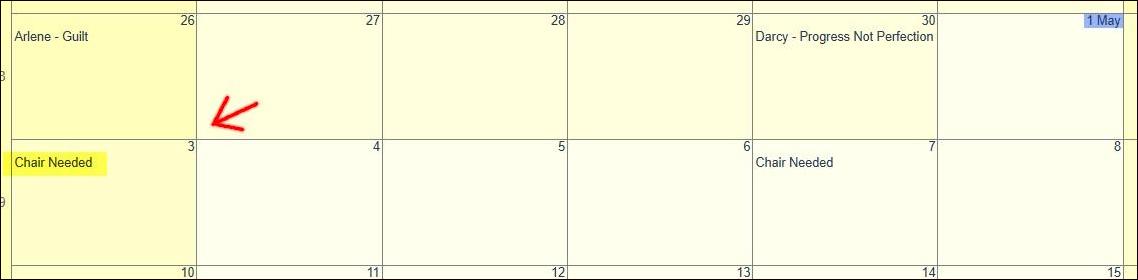
2. Check the Chair Calendar to determine the next available date that needs a chairperson (It will read "Chair Needed). you will need this date in the Schedule step below. It helps to change the calendar view to "Month." Required: an Administrative password to access the editing and Admin controls of the calendar which is located at: https://keytoharmony.org/calendar/
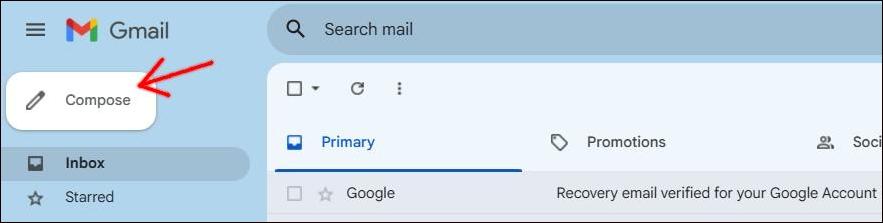
3. Go to Gmail.com and access the key970719@gmail.com account. Click on the Compose button to open a new message. Required: You will need a personal Gmail account and an active Google account to gain access to the Key Gmail account. Although not required, it is suggested that you use a browser to log on to Gmail that you do not use to access your personal Gmail account to keep the two accounts separate.
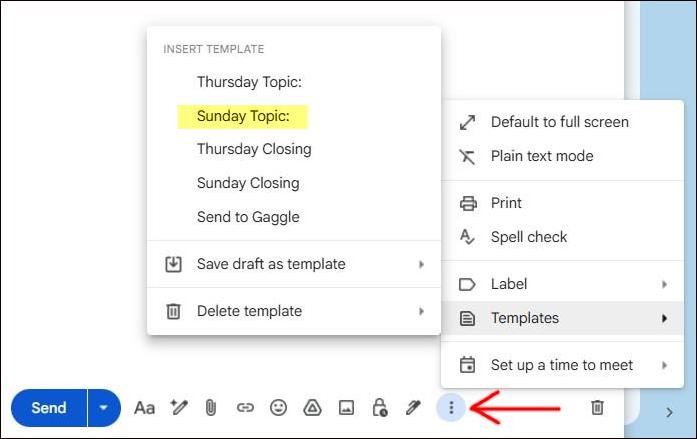
4. Open a Template by clicking on the 3-dot menu icon at the bottom of the new email message. Then mouse-over "Templates" and click the Sunday Opening or Thursday Opening Template.
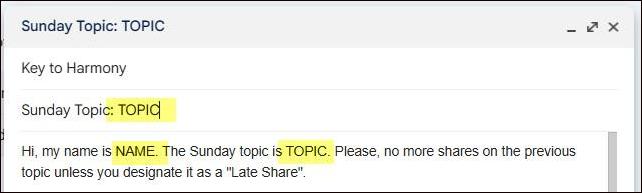
5. Edit the Template. First, click in the TO: field of the email and type a "k" and then click on the autofill option: KeyToHarmony@gaggle.email. Next, type or copy-paste the TOPIC of the share in the two places indicated and the NAME of the Key to Harmony member who is sharing.

6. Add the Member's Share by scrolling down to the "CHAIRPERSON'S SHARE GOES HERE" section in the template, deleting the text and copy-pasting the member's share into the email message.

7. Schedule the Opening by clicking on the arrow button next to the Send button and then clicking on "Schedule send." Be careful not to click on Send. It will send the message out immediately to the Key membership.

8. Schedule send. Click on "Pick date & time" on the pop-up menu.
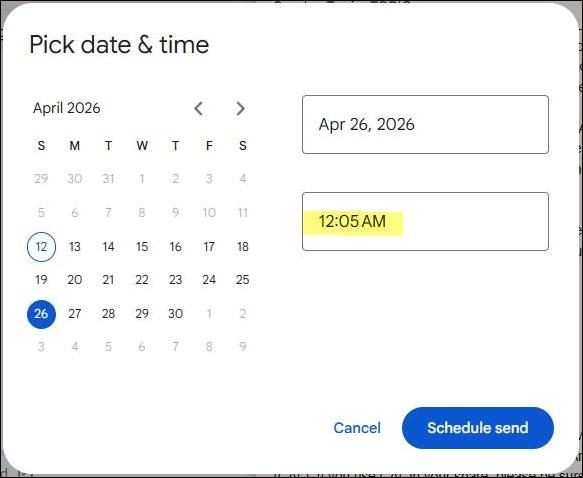
9. Pick a Date and Time. On the next pop-up window calendar, choose the next available date that you saw on the Chair Calender. Then change the time for the message to be sent to: 12:05 AM then click the "Schedule send" button at the bottom. The message should now appear in the Scheduled list found on the left-side Gmail navigation panel.
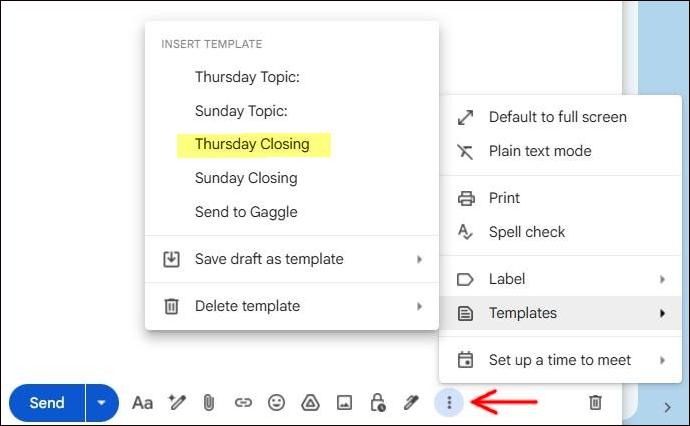
10. Schedule Closing: Using the steps above in Google email, click on Compose, type "k" into the TO: field, click on the 3-dot menu icon at the bottom, mouse-over Templates, then click on the appropriate closing template. The template should not need any editing.
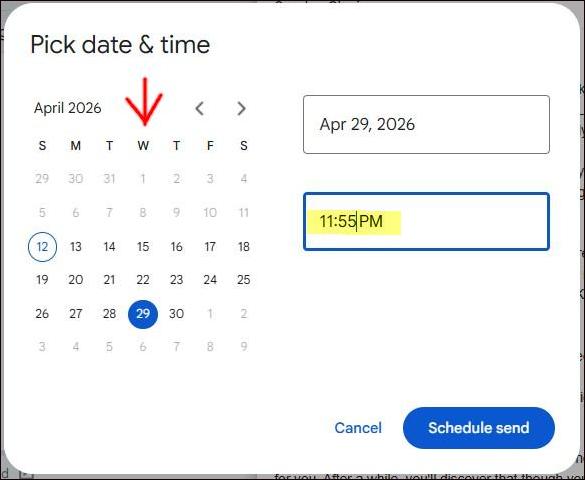
11. Choose Closing Date & Time: The date for the closing should be set for the night before the next meeting date. Sunday closings should be scheduled for Wednesdays and Thursday closings should be scheduled for Saturdays. The time for both should be set to 11:55 PM. Click the "Schedule send" button.
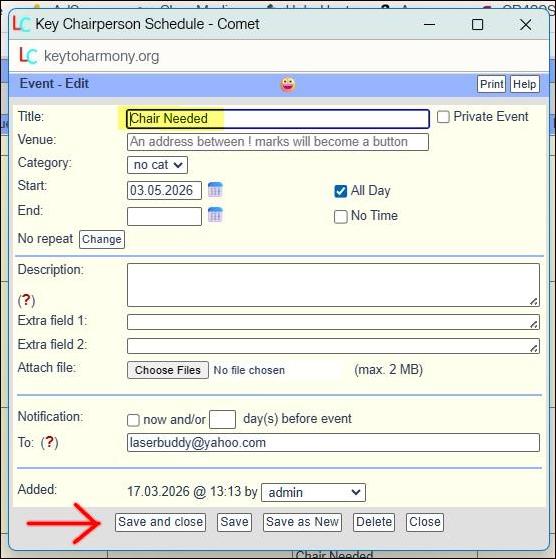
12. Change the Calendar to add the above message to the Chair Calendar, log on to the calendar and click on the words "Chair Needed" on the correct date to access a pop-up menu. In the Title field, delete "Chair Needed" and type the name of the member chairing, space-hyphen-space, and the Topic. Click "Save and close" at the bottom.